Layer node

The Layer node stacks several video streams on top of each other on a shared canvas — CutWire Prism's compositing node. It replaces the old "transform context" node.
Add it: right‑click the empty canvas → Add → Switching Node → Layer.
Ports
- Several blue inputs, on the left edge. The node always keeps one empty input available — connect a stream to it and a new empty slot appears below, so you never run out of room to add another layer.
- One blue output, on the right edge — the composited result, ready to feed a Process node, an A/B Select node, or the Output node directly.
The layer list
Each connected input adds a row to the node showing:
| Control | What it does |
|---|---|
| Eye icon | Toggle that layer's visibility on/off without disconnecting it. |
| Name | Double‑click to rename the layer. |
| ▲ / ▼ | Move the layer up or down in the stack. |
Order matters: the bottom row is the bottom‑most layer; the top row sits on top of everything below it — just like a layers panel in an image editor.
Edit Layout
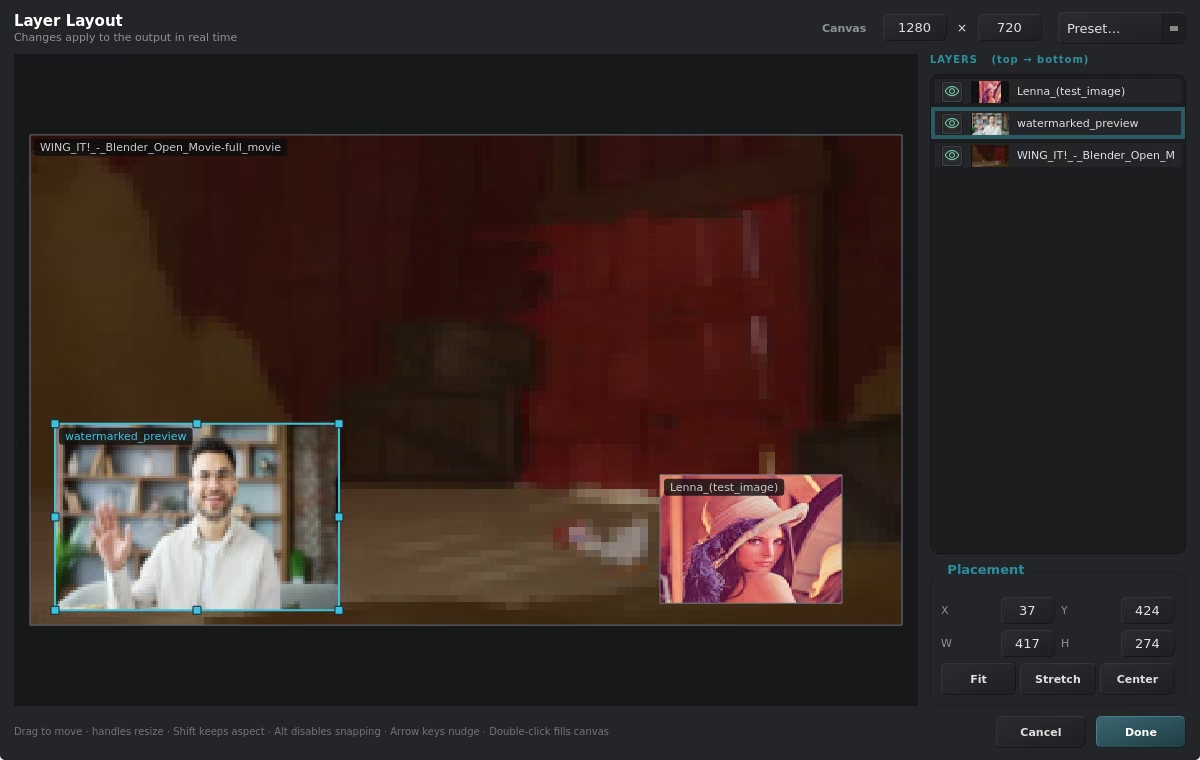
Click Edit Layout on the node to open the visual canvas editor, where you drag and resize each connected layer directly on a representation of the composition. Use Edit Canvas Size to change the output resolution the layers are positioned within.
Typical setup
- Wire a background Input node into the Layer node's first input.
- Wire a camera, text, or overlay into the next input(s) — each gets its own row.
- Use Edit Layout to position and size each layer.
- Reorder rows with ▲ / ▼ so the right elements sit on top.
- Take the Layer node's output to an A/B Select node or straight to the Output node.