Timeline
The timeline is where you arrange clips across tracks. The toolbar sits above the tracks; the playhead marks the current preview time.
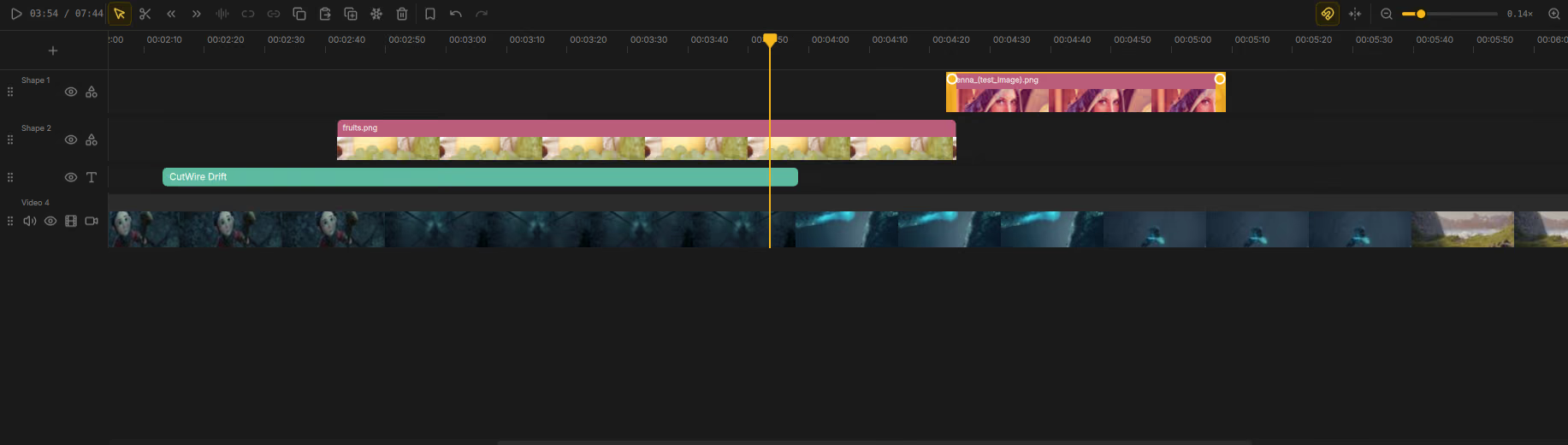
Tracks
Drift uses typed tracks so related clips stay organized:
| Track kind | Typical content |
|---|---|
| Video | Video and image clips |
| Audio | Audio-only clips (or separated audio) |
| Text | Title overlays |
| Subtitle | Caption / subtitle clips |
| Shape | Shape overlays |
Mute a track to silence its audio; hide a track to exclude it from the preview and export.
Tools
| Tool | Tooltip / behavior | Key |
|---|---|---|
| Select | Normal editing — move and select | V |
| Cut | Click a clip to split it | B |
| Trim start | Click to drop everything left of the cut | — |
| Trim end | Click to drop everything right of the cut | — |
You can also Split at current time with S while a clip is under the
playhead.
Clip operations
| Action | What it does | Shortcut |
|---|---|---|
| Separate audio | Pull audio from a video clip onto an audio track | Ctrl+Shift+S |
| Unlink | Unlink linked video and audio so they move independently | Ctrl+Shift+U |
| Merge | Merge adjacent clips | Ctrl+M |
| Copy / Paste / Duplicate | Clipboard and duplicate | Ctrl+C / Ctrl+V / Ctrl+D |
| Cut selection | Cut to clipboard | Ctrl+X |
| Freeze frame | Insert a freeze at the current time | — |
| Delete | Remove selection | Delete |
| Nudge | Move selection slightly left/right | Alt+Left / Alt+Right |
Snap, ripple, and zoom
| Control | What it does |
|---|---|
| Snap | Toggle edge snapping so clips stick to neighbors and the playhead. |
| Ripple | Close gaps when trimming (Close gaps when trimming). |
| Zoom out / Zoom in | Change timeline scale. Click the zoom label to reset to 1×. |
Bookmarks
Add bookmark at current time drops a mark (default name Mark N) for quick
navigation. Use the context menu on marks to rename or remove them.
Playback
| Control | What it does |
|---|---|
| Play / Pause | Toggle playback (Space). |
| Time readout | playhead / duration. |
| Scene 1 | Scene badge (center of the toolbar). |
Undo and selection
| Action | Shortcut |
|---|---|
| Undo / Redo | Ctrl+Z / Ctrl+Shift+Z |
| Select all clips | Ctrl+A |
| Clear selection | Escape |
Context menu
Right-click clips and empty track areas for the same operations as the toolbar — split, delete, unlink, and related actions — without hunting for icons.