Settings
Project and preview preferences live in Assets → Settings.

Video size
| Control | What it does |
|---|---|
| Choose layout… | Opens the layout chooser (same dialog as a new project). |
| Presets | Custom · 1920×1080 (16:9) · 3840×2160 (4K) · 1080×1920 (9:16) · 1080×1080 (1:1) · 1440×1080 (4:3) |
| Width / Height | Custom pixel size. |
Changing size does not shrink existing clips — content outside the new frame is cropped off.
Layout chooser
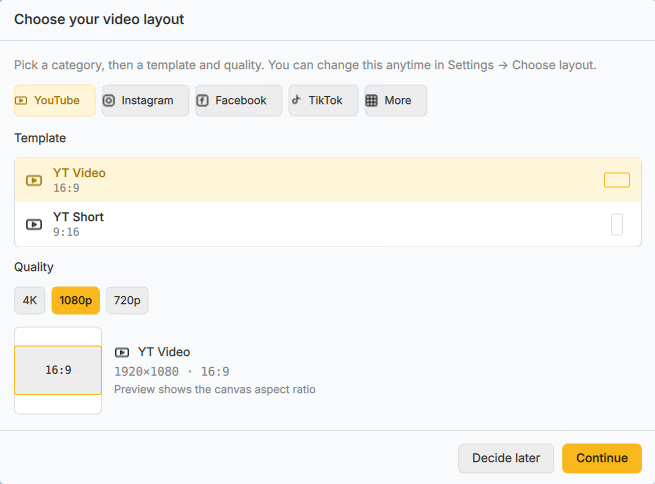
Choose your video layout lists platform templates:
| Category | Templates |
|---|---|
| YouTube | YT Video, YT Short |
| Reel, Story, Post, Feed | |
| Reel, Video, Story | |
| TikTok / More | TikTok, Snapchat, X/Twitter, LinkedIn, Square, Landscape, Portrait |
Pick 4K, 1080p, or 720p, then Continue. Decide later / Cancel keeps the current size.
Crop video size
Crop video size lets you reframe the canvas on the preview (Drag the preview edges to change what’s included). Use Apply to commit or Cancel crop to abort. Overlay tips: Ctrl+scroll to zoom, middle-drag to pan, Fit view, Reset.
Preview guides
| Option | What it does |
|---|---|
| Enabled | Master toggle for guides (G also toggles). |
| Rule of thirds | Framing grid. |
| Center cross | Center mark. |
| Safe margins | Title-safe / action-safe guides. |
Background
Behind letterboxed areas of the preview:
| Mode | Notes |
|---|---|
| Solid color | Pick a swatch. |
| Blur | Blurred frame fill; adjust Blur strength. |
Author
Set a default Author used in project properties.
Updates
| Control | What it does |
|---|---|
| Check on startup | Look for new Drift versions when the app launches. |
| Check now | Run an immediate check. |
When an update exists, the header can show Drift %1 is available.