Text and titles
Add titles and styled text from the Text tab in the assets panel, then refine them in the Text properties tab.
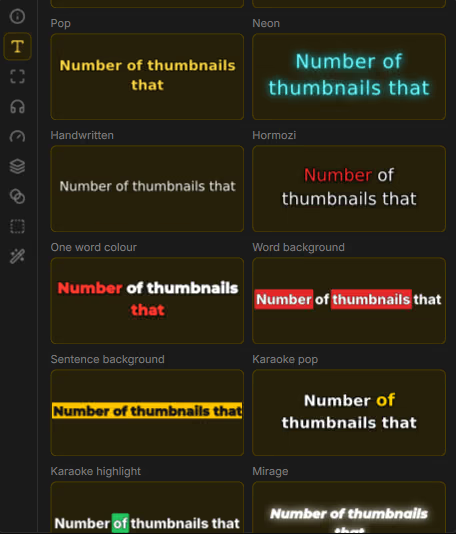
Add a text clip
- Open Assets → Text.
- Add a blank text clip or type content when prompted.
- Drag the clip onto a text track (or let Drift place it).
- Double-click the text in the preview to edit wording in place.
For captions and .srt workflows, see Captions.
Text inspector
Select a text or styled subtitle clip and open Properties → Text:
| Control | What it does |
|---|---|
| Text content | The string shown on screen. |
| Style packs | Quick presets for look-and-feel. |
| Font | Family (install more via Addons). |
| Weight | Boldness. |
| Size | Point size. |
| Color | Fill color. |
| Style / Italic | Emphasis. |
| Align | Left, centre, or right; top, middle, or bottom. |
| Line height | Vertical spacing between lines. |
| Letter spacing | Tracking between characters. |
| Word wrap | Wrap long lines. |
| Outline | Width and color. |
| Shadow | Offset X/Y, blur, opacity, shadow color. |
Position and timing
Use Position & size for placement and opacity, and General for start time and duration. Animate with keyframes when you want titles to move or fade over time.