Stickers and shapes
Finish compositions with emoji stickers and vector shapes — both live as clips on the timeline.
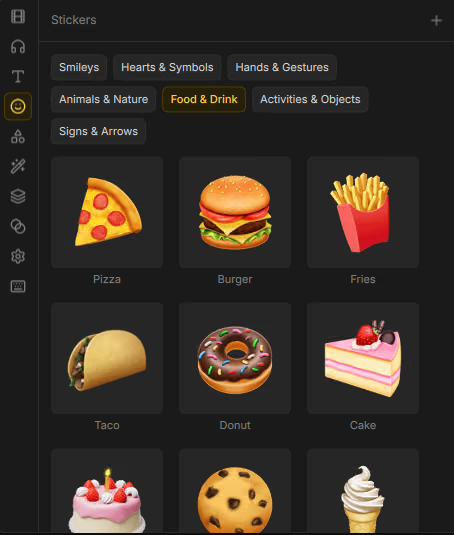
Stickers
- Open Assets → Stickers.
- Browse packs by category, or click More emoji for the full picker.
- Drag a sticker onto the timeline (or onto the preview).
If no packs are installed, Drift prompts you to open Extras and install a sticker addon. See Addons.
Sticker clips use Position & size like other overlays. Scale and rotate them to match the scene.
Shapes
- Open Assets → Shapes.
- Pick a shape from Basic, Arrows, Bubbles, or Fun.
- Click or drag onto the timeline.
Built-in catalog
| Category | Shapes |
|---|---|
| Basic | Rectangle, Rounded rectangle, Square, Ellipse, Circle, Triangle, Right triangle, Diamond, Pentagon, Hexagon, Octagon, Parallelogram, Trapezoid |
| Arrows | Arrow, Double arrow, Block arrow, Curved arrow, Chevron |
| Bubbles | Speech bubble, Rounded bubble, Thought bubble, Callout |
| Fun | Star, Burst, Lightning bolt, Cloud, Heart, Cross, Banner |
Shape inspector
Select a shape clip → Properties → Shape:
| Control | What it does |
|---|---|
| Shape | Switch the geometry type. |
| Fill | None, Solid, Linear gradient, or Radial gradient. |
| Stroke | Outline style. |
| Corner radius | Rounding on applicable shapes. |
| Points / Inner radius | Star and similar variants. |
| Head size / Thickness | Arrow geometry. |
| Tail position / size | Speech-bubble tail. |