Effects
GPU effects change how a visual clip looks — color, blur, glitch, face fun, and chroma key. Apply them from the Effects assets tab or the clip’s Effects properties tab.
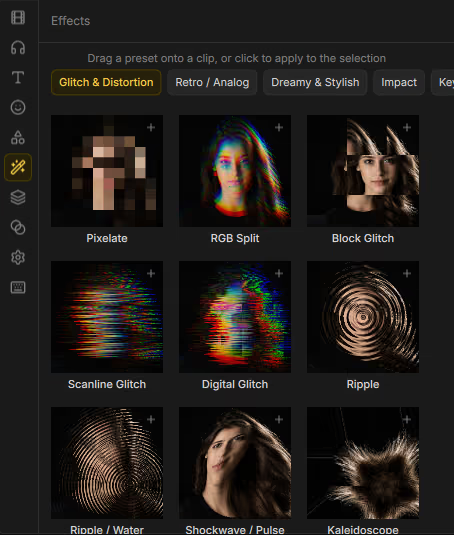
Apply and reorder
- Select a video, image, or other visual clip.
- Drag an effect from Assets → Effects onto the clip, or open Properties → Effects and use Browse effects.
- Tweak parameters in the Effects tab. Enable Auto keyframes to record changes over time — see Keyframes.
- Reorder or remove effects in the stack on the same tab.
Face effects
Funny Face effects need face tracking (face-model addon + AI engine). In Properties → Effects:
| Control | What it does |
|---|---|
| Detect faces… | Run detection on the clip. |
| Re-detect faces | Refresh tracking after a cut or reframe. |
| Clear face track | Remove stored face data. |
Install from Extras if Drift prompts you. Walkthrough: Addons → Use face tracking.
Bundled effects
| Category | Effects |
|---|---|
| Glitch & Distortion | Block Glitch, Digital Glitch, Infinite Zoom, Kaleidoscope, Pixelate, RGB Split, Ripple, Ripple / Water, Scanline Glitch, Shockwave / Pulse, Wave Warp |
| Retro / Analog | Cinematic, Film Burn / Light Leak, Grayscale, Sepia, Super 8, VHS, VHS / CRT |
| Dreamy & Stylish | Bling, Bloom, Bloom / Glow, Blur, Bokeh Dream, Edge Glow / Neon, Gaussian Blur (GPU), Halation, Lens Flare, Light Leak, Lightning Sky, Star Filter, Time Echo / Trail, Vignette |
| Impact | Beat Shake, Brightness, Contrast, Gamma, Hue, Motion Trail, Saturation, Sharpen, Spin Blur, Strobe, Temperature, Zoom Punch |
| Funny Face | Alien Head, Big Eyes, Face Fisheye, Face Swirl, Fat / Slim Face, Wide Mouth |
| Artistic | Comic, Duotone, Oil Paint, Pencil Sketch |
| Keying | Chroma Key |
Addon packages can add or update effects without a full app update. For green screen, start with Chroma Key; for subject isolation without a screen, see Cutouts and masks.