Cutouts and masks
Isolate part of a frame with a geometric mask, AI subject cutout, or chroma key.

Geometric masks
Select a visual clip → Properties → Cutouts:
| Control | What it does |
|---|---|
| Cutout shape | None, Rectangle, Ellipse, Star, Heart, Bars, Freeform |
| Center X / Y | Mask position |
| Width / Height | Mask size |
| Rotation | Mask angle |
| Feather | Soften the edge |
| Invert | Keep the outside instead of the inside |
| Remove cutout | Clear the mask |
Drag handles on the preview when available for faster framing.
Cut out subject (SAM2)
Subject → Cut out subject… opens the cutout window for AI segmentation (~190 MB cutout model plus an AI engine).
- Scrub to a clear Frame of the subject.
- Left-click to include, right-click to exclude; click a marker to remove it.
- Choose Two clips (subject + background) or Hide everything except the subject.
- Click Cut out subject (or Cut out & apply effect when a template asked for a cutout).
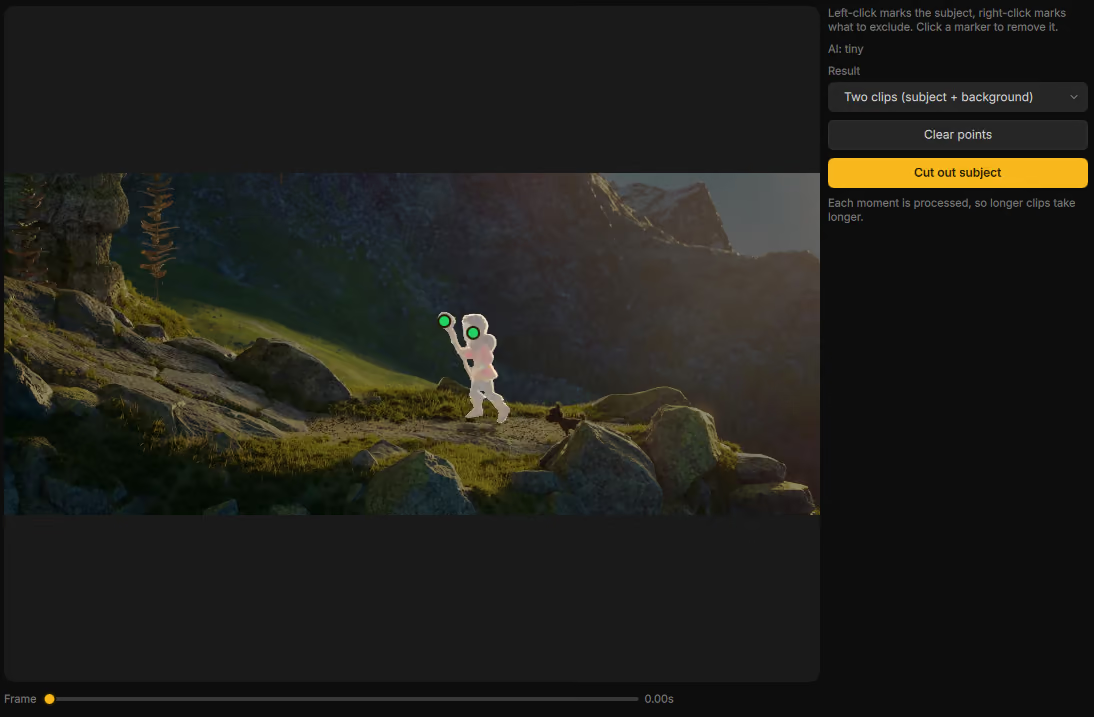
Longer clips take longer. Full install and tips: Addons → Use subject cutout.
Use this when you want a person or object without a green screen. Some templates show Needs cutout until this step is done.
Chroma key
For green/blue screen, apply the Chroma Key effect from Effects and tune the key color and tolerance in the Effects tab.