Captions
Create subtitles by speech recognition, manual entry, or .srt import — then
edit cues on the timeline.
Auto captions
Needs the Whisper speech model (~670 MB) and an AI engine from Extras. Full setup steps live on Addons.
- Select a video or audio clip on the timeline.
- Open Assets → Text or Properties → Audio.
- Pick a language in the dropdown.
- Click Add auto caption or Create captions from speech.
Watch the progress bar; Cancel stops the job. Drift creates subtitle clips you can edit like any other clip.
Manual and SRT
| Action | Where |
|---|---|
| Add subtitle clip | Assets → Text |
| Import subtitle file | Assets → Text (.srt) |
| Export cues | Subtitles property tab |
Cue editor
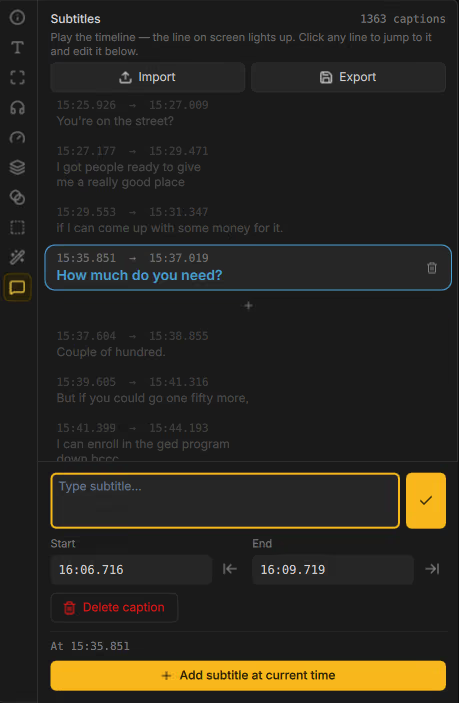
Select a subtitle clip → Properties → Subtitles:
- Browse the cue list; edit text, start, and end times.
- Add subtitle at current time inserts a cue at the playhead.
- Import / export
.srtfrom this tab. - While the Subtitles tab is open, a cue lane on the timeline helps you scrub and adjust timing.
Styling
Styled subtitle clips use the same Text inspector as titles — font, color, outline, shadow, and alignment. See Text and titles.