Addons
Fonts, sticker packs, speech models, cutout models, and acceleration runtimes are optional downloads. That keeps the base install small — open Extras in the header (layers icon) when you need more.
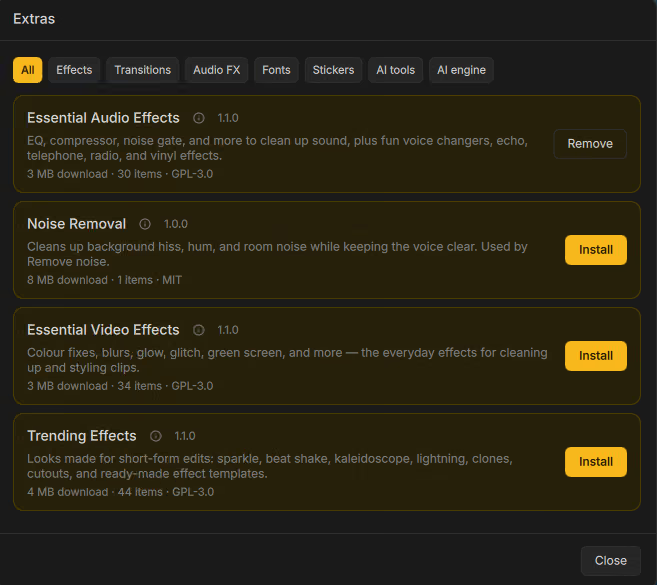
Open the Addon Manager
- Click Extras in the header, or
- Follow an in-app prompt from the font picker, Stickers tab, auto-subtitle flow, or cutout / face-tracking / noise-removal tools.
Packages are signed .driftpkg archives. Drift verifies them before install and
stores them under the app data addons/ folder.
Categories
Filter chips in Extras:
| Filter | Examples |
|---|---|
| All | Everything available |
| Effects / Transitions / Audio FX | Shader and audio updates (core packs can patch bundled content) |
| Fonts | Extra typefaces for titles and captions |
| Stickers | Emoji and sticker packs |
| AI tools | Whisper speech, cutout (SAM2), face model, DeepFilter noise cleanup |
| AI engine | ONNX Runtime builds (CPU, CUDA, WebGPU, …) |
Exact package names vary by release; install what the feature you want asks for.
What needs an addon
| Feature | Typical packages |
|---|---|
| Extra fonts | Font addons |
| Stickers | Sticker packs |
| Auto captions | Whisper model + AI engine |
| Cut out subject | Cutout model (~190 MB) + AI engine |
| Face effects | Face model + AI engine |
| Remove noise | DeepFilter + AI engine |
Effects and transitions also ship bundled with the app so editing works offline; addon updates can supersede bundled ids without a full Drift upgrade.
After install
New fonts appear in the Text inspector. Sticker packs show under Stickers. AI features unlock once both the model and a compatible engine are installed — restart or retry the action if a prompt still appears (see below for AI details).
AI-powered addons
Every AI feature needs two installs:
- An AI engine (ONNX Runtime) — how Drift runs models on your machine.
- The AI tool for that feature — the model weights (speech, cutout, face, or denoise).
If either piece is missing, the UI shows an install button such as Install AI engine first or Download speech recognition (about 670 MB) instead of the feature controls. Clicking it opens Extras on the right category.
Install the AI engine
- Open Extras → AI engine.
- Install a runtime pack for your platform (CPU always works; optional GPU packs are faster when available).
- Under How AI runs, pick how Drift should execute models:
| Option | Meaning |
|---|---|
| Automatic (recommended) | Uses the fastest option you have installed; falls back to this computer if the graphics card can’t help. |
| This computer | Force CPU. |
| NVIDIA graphics (faster) | CUDA, when that pack is installed. |
| Graphics card (faster) | WebGPU (or similar), when that pack is installed. |
If Drift says Restart Drift for this to take effect, quit and reopen after changing the core runtime. Switching acceleration plugins on an already-loaded engine can apply without a restart.
Install AI tools
Open Extras → AI tools and install only what you need:
| Tool | About | Used for |
|---|---|---|
| Speech recognition (~670 MB) | Whisper | Auto captions |
| Subject cutout (~190 MB) | SAM2 | Cut outs |
| Face model (~5 MB) | Face landmarks | Funny Face effects |
| Noise cleanup (~9 MB) | DeepFilter | Remove noise |
You can install several tools; they share the same AI engine.
Use auto captions
- Select a video or audio clip on the timeline.
- Open Assets → Text, or Properties → Audio.
- Choose a language (or the auto / default entry in the list).
- Click Add auto caption or Create captions from speech.
Drift shows progress (Getting speech recognition ready…, Transcribing…). Use Cancel to stop. When finished, subtitle clips appear for editing — see Captions.
If speech isn’t found, Drift reports No speech detected.
Use subject cutout
- Select a visual clip → Properties → Cutouts.
- Click Cut out subject… (install prompts appear if the model or engine is missing).
- In the Cut out subject window:
- Scrub Frame to a clear moment of the subject.
- Left-click marks the subject (green); right-click marks areas to exclude (red). Click a marker to remove it.
- Choose a Result: Two clips (subject + background) or Hide everything except the subject.
- Click Cut out subject (or Cut out & apply effect when a template requested the cutout).
- Longer clips take longer — each moment is processed. Use Cancel to stop.
Details and geometric masks: Cutouts and masks.
Use face tracking (Funny Face effects)
- Install the face model + AI engine.
- Select a clip → Properties → Effects.
- Click Detect faces… (or Re-detect faces after a cut/reframe).
- Apply Funny Face effects from Assets → Effects (Alien Head, Big Eyes, and so on).
- Clear face track removes stored face data when you no longer need it.
Without a face track, Funny Face effects won’t lock onto people correctly.
Use noise removal
- Select a video or audio clip → Properties → Audio → Remove noise….
- In the Remove noise window, Drift previews a short section (~8 s).
- Compare Original and Noise removed (Play / toggle between them).
- Scrub the window position if you want to audition a different part of the clip.
- Confirm to process the whole clip. Drift adds the cleaned result as a new audio track above the original — the source clip stays untouched.
Cancel closes the window and stops an in-progress run.
Opening a project that needs AI packs
If you open a .drift project saved with addons this machine doesn’t have, Drift
shows Extra packs needed:
This project was saved with extra packs you don't have. It has opened, but anything they provide will not show until they are installed.
| Choice | Result |
|---|---|
| Install all | Download the listed packs. |
| Skip | Keep editing; AI-backed looks stay inactive until you install later. |
Tips
- Install the AI engine first, then the tool — the UI guides you that way.
- GPU packs need matching hardware/drivers; if results look wrong or fail, set How AI runs to This computer and retry.
- Large downloads (especially Whisper) need a network connection; Extras shows Can't reach the download store with Retry when offline.
- Removing a pack from Extras deletes its downloaded data; you can install again later.